Category: Music

  • TouchJams vs Jukeblaster vs ZenPoint vs Dino’s Jukebox – which home jukebox software?

    Choosing home jukebox software for a Windows PC and a touchscreen? Here’s how the main options compare.

    If you search for home jukebox software, the same names keep coming up: TouchJams, Jukeblaster and ZenPoint Digital Center. I’m also building my own, Dino’s Jukebox. So I’ve put all four side by side.

    A quick word on bias: I wrote Dino’s Jukebox, so I’m not neutral. Therefore, to keep this fair, I’ve only listed what each maker says on its own website (checked in October 2026). Prices are as listed in October 2026 and can change, so check each site before you buy.

    Home jukebox software at a glance

    TouchJamsJukeblasterZenPointDino’s Jukebox
    Runs onWindowsWindows, plus a Raspberry Pi 4 versionWindows 10 and 11Windows 10 and 11 (64-bit)
    LicencePaid full version, free demoPaid, in several editionsOne-off purchase; 7-day free trialNot released yet
    Price£37.23£38£49.65£29.99 (planned)
    TouchscreenYesYesYesYes
    Coins or notesCoin boxes, note validators, takings reportsPub edition, plus a ccTalk coin kitProfessional editionCoin mechanism or Free Vend
    Music videosYesVideobox editionYes, plus filmsNo – music only
    KaraokeMP3+CDG (per the maker)Videobox editionYes: CDG and LRC, key and tempo changeNo
    Phone controlAny web browser on your networkAndroid appScan a code, no app needediPhone app; iPad version coming soon
    Look and feelFully skinnable, with a skin editorVaries by editionSkins catalogue and skin editorSeasonal themes
    Stand-out extrasAuto DJ, 10-band EQ, internet radioHappy Hour, timers, upright screens, second-room selectorArcade games, photo booth, second screenOwn Top 50 chart, adjustable DJ-voiced countdown (up to the Top 50), built-in radio stream that can play on an Amazon Echo

    TouchJams

    First, TouchJams is a long-running commercial jukebox program for Windows. It’s built for touchscreens, yet it works with a mouse too. Above all, its strengths are control and customisation. For example, you get a fully skinnable look with its own skin editor, an Auto DJ, a 10-band equaliser and dual-monitor support. In addition, you can manage it from any web browser on your network, and user and group controls stop guests changing things.

    Meanwhile, for pubs, it handles coin boxes and note validators and keeps track of takings. Best for: people who want to make the jukebox look exactly their own, or run it in a business.

    Jukeblaster

    Jukeblaster comes as separate editions rather than one program. For instance, Home Jukebox is the simple audio version for home use. Pub Jukebox adds Happy Hour, background music timers, upright (portrait) screens and flexible currency support. Similarly, Videobox adds music videos and karaoke. There’s also a Raspberry Pi 4 version, which is unusual.

    In addition, an Android app works as a remote with all of them. For pubs, a second “slave” selector can sit in another room. Best for: a small dedicated box on a Raspberry Pi, or a pub that wants proper venue features.

    ZenPoint Digital Center

    ZenPoint is the all-rounder of the group. Besides the jukebox, it has karaoke with word-by-word lyrics, key and tempo change, films and videos, retro arcade games and a photo booth. Furthermore, guests can scan a code with their phone to browse and queue songs, without installing an app. It also works fully offline with your own library.

    Better still, it’s a one-off purchase with no subscription, in Home and Professional editions, and a 7-day trial unlocks everything. Meanwhile, Professional adds coin play and a commercial licence. Best for: parties and family rooms, where karaoke and video matter as much as music.

    Dino’s Jukebox

    Dino’s Jukebox is my own project. I built it because none of the others did quite what I wanted. It isn’t finished yet, so you can’t download it today, but the planned price is £29.99. It deliberately does one thing: music, presented like a real pub jukebox. In other words, it doesn’t do video, karaoke or games.

    Instead, it focuses on things the others don’t emphasise. It keeps its own “Hot Here” Top 50 chart from what people actually play. Then a natural-sounding DJ voice, running offline on the PC, counts down the chart like a radio show. You can also choose how long the countdown is, right up to the full Top 50. Moreover, it levels every track to the same loudness, and a built-in radio stream lets you listen in other rooms. As a result, you can even play the jukebox on an Amazon Echo, using the method in my Echo streaming guide. At home it runs on Free Vend; in a pub it takes coins and offers Priority Play. For control, there’s an iPhone remote app, and an iPad version is coming soon. A dedicated iPhone music player based on the same software is also on the way. Best for: people who want a music-only jukebox with a pub feel – once it’s released.

    Which home jukebox software should you choose?

    • Karaoke, films or games as well as music: ZenPoint.
    • A Raspberry Pi, or an Android phone as the remote: Jukeblaster.
    • Deep customisation, browser control or note validators: TouchJams.
    • A music-only pub jukebox with its own chart and DJ countdown: Dino’s Jukebox, when it’s ready, at a planned £29.99.

    TouchJams has a free demo and ZenPoint has a 7-day trial, while Jukeblaster’s site lists its editions and add-ons separately. Either way, the best test is simple: try them on your own music and your own screen. I’ll update this comparison when Dino’s Jukebox is released, and you can follow progress on the Dino’s Jukebox page.
  • Dino’s Discogs Tagger – fixing my music tags with PowerShell

    My music collection is mostly FLAC rips, and over the years the tags have become a mess. Some albums have no artwork, and genres often just say “Other”. Years tend to be the date of a remaster rather than when the song came out. On top of that, the file names come in half a dozen different styles. Fixing all that by hand wasn’t going to happen. So I wrote Dino’s Discogs Tagger, a single PowerShell script that looks every album up online and then re-tags and renames the files for me.

    The script is also on GitHub, where you can read the code, download it or keep up with changes: github.com/axelthefatcat/dinos-discogs-tagger.

    What it does

    You point it at a folder – a single album, or a whole drive of album folders – and for every folder containing .flac or .mp3 files it:

    • finds the album on Discogs,
    • writes clean tags: title, artist, album artist, album, track and disc numbers (always two digits – 01, 02…) with totals,
    • puts the Discogs genres in the Genre tag and the Discogs styles in the Comment (plus a STYLE tag),
    • sets a single four-digit year – the year the track was first released, not the year of the CD I happen to own,
    • embeds the front cover and a picture of the artist,
    • adds the label, catalogue number and Discogs release ID for reference,
    • and renames each file to a consistent pattern: 01.01 - Billy Idol - Rebel Yell.flac (disc.track – artist – title).

    How the Discogs tagger works

    1. Working out what the album is

    The script first reads whatever tags are already in the files (artist, album, titles, track numbers). If there aren’t any, it falls back to the folder name (Artist - Album) and the numbers at the start of the file names. That gives it something to search Discogs with.

    2. Only offering releases that actually fit

    Discogs lists every pressing of an album separately, and they often have different track lists. So rather than just showing the search results, the script opens each one. It then only offers releases that have the same number of tracks as the folder, where the track titles match the ones in the files. Matching ignores case, punctuation and bracketed extras like “(Remastered)”. Each option shows how well it fits, e.g. [11 tracks, 11/11 titles match].

    Next, you pick one (Enter takes the first). Alternatively, paste a Discogs release URL if you already know the right one, or type a different search. If nothing matched, press A to see every result. Before it writes anything, the script shows a table of old and new file names, plus the year it found for every track. Finally, it asks you to confirm.

    3. Getting the right year

    This was the fiddly part. A “Greatest Hits” CD from 1988 shouldn’t make every song on it look like it came out in 1988. Instead, for each track the script asks MusicBrainz for the recordings of that song by that artist. It then takes the earliest release date. Along the way, it ignores live, demo and remix versions (unless your track is one). It also prefers recordings of a similar length, so album versions and single edits don’t get mixed up.

    For normal studio albums it cross-checks against the Discogs “master” year (the album’s first release) and uses whichever is earlier. For compilations, however, it relies on MusicBrainz only. The preview shows CHECK on any track where the two sources disagree by more than a year, and NOT FOUND on any it couldn’t find. That way, you can spot the odd ones before applying.

    4. Writing the tags – with no extra software

    I wanted this to run on a locked-down Windows PC with nothing but the built-in PowerShell 5.1. As a result, there are no libraries or tools to install. The script reads and writes the tag formats itself:

    • FLAC – rebuilds the Vorbis comment and PICTURE metadata blocks (picture type 3 = front cover, type 8 = artist) and copies the audio across untouched.
    • MP3 – writes an ID3v2.3 tag (TIT2, TPE1, TRCK, TYER, TCON, COMM, APIC and so on).

    The script writes each file to a temporary copy first and only swaps it in once it’s complete. Therefore, a failure part-way through doesn’t damage the original. Tags it doesn’t manage, such as ReplayGain values, stay as they were.

    It also behaves itself with the online services. For example, it keeps Discogs requests under their 60-a-minute limit and MusicBrainz requests under one a second. In addition, it downloads each artist picture only once.

    Using it

    1. Download the zip above and extract Update-MusicTags.ps1.
    2. Get a free Discogs personal access token: log in at discogs.com/settings/developers and click Generate new token. The script asks for it the first time and saves it in %APPDATA%\DinosDiscogsTagger.
    3. Run it – a folder picker pops up:
    powershell -ExecutionPolicy Bypass -File .\Update-MusicTags.ps1

    I’d recommend a dry run on a copy of one album first – -Preview shows exactly what would change without touching anything:

    .\Update-MusicTags.ps1 -Path "D:\Music\Billy Idol\Idol Songs" -Preview

    Options

    OptionWhat it does
    -PathFolder to process (skips the folder picker)
    -PreviewShow the plan, change nothing
    -AutoNo questions – takes the first fully matching release, skips albums with no match
    -NoRenameUpdate tags but keep the existing file names
    -NoRecurseOnly the selected folder, not its sub-folders
    -SaveFolderArtAlso save cover.jpg in each album folder
    -FileNameFormatChange the naming pattern – default {disc}.{track} - {artist} - {title}; also {album}, {albumartist}, {year}

    Good to know

    • Checking every candidate release takes about a second each, so the first list for an album takes around 30 seconds. Choosing a different release afterwards is instant.
    • The year lookup adds roughly a second per track because of MusicBrainz’s rate limit.
    • Some years will differ from what’s printed on the CD – that’s deliberate. Rebel Yell, for example, comes out as 1983, when the song was first released.
    • As with anything that rewrites files in bulk: keep a backup of your music before running it over the whole collection.
  • Play your own audio stream on Amazon Echo

    Play your own audio stream on Amazon Echo

    “Alexa, open home radio” – and your own audio stream plays on Amazon Echo.

    I wanted to play my own audio stream on Amazon Echo speakers around the house. That could be my own radio station, a media server or anything else on my home network that streams MP3. However, Alexa can’t just play a local address. So I worked out a way round it, using a tiny Alexa skill I wrote myself and my Synology NAS. I’ve also written the whole thing up as a free step-by-step guide on GitHub, with the skill code ready to copy.

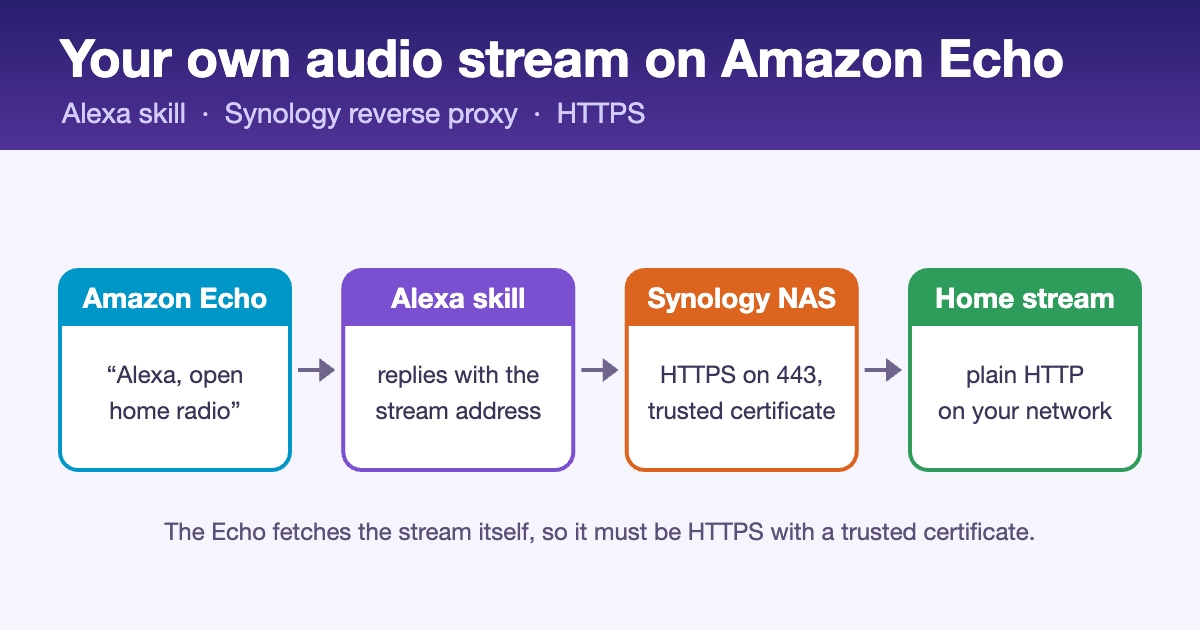
    How your own audio stream reaches Amazon Echo: Echo, Alexa skill, Synology NAS over HTTPS, home stream
    How the stream gets from your network to the Echo.

    Why an audio stream on Amazon Echo isn’t simple

    When an Echo plays audio from a skill, it fetches the stream itself, straight from the address the skill gives it. However, Alexa is fussy about that address. It must be:

    • HTTPS on port 443, with a properly trusted certificate (self-signed won’t do)
    • reachable from the internet, not just your home Wi-Fi
    • in a format it understands: MP3, AAC/MP4, HLS, PLS or M3U

    Unfortunately, most home stream sources are plain HTTP on an odd port like 8000, so they fail all three tests. That’s where the Synology comes in.

    How the audio stream reaches your Amazon Echo

    1. You say “Alexa, open home radio”.
    2. Your Alexa skill replies with the stream’s secure address, e.g. https://radio.yourname.synology.me/stream?key=…
    3. The Echo requests that address from your Synology NAS over HTTPS (port 443, Let’s Encrypt certificate).
    4. The Synology’s reverse proxy fetches the audio from your stream source on the home network over plain HTTP (e.g. http://192.168.1.50:8000) and passes it back to the Echo.
    • The Synology is the secure front door. A reverse proxy rule takes HTTPS requests for an address like radio.yourname.synology.me. It then passes them to the stream source on your network, using a free Let’s Encrypt certificate.
    • The Alexa skill is tiny and free. As soon as you say the magic words, it simply tells the Echo to play that HTTPS address. Pause, resume and stop work too.
    • It stays private. The skill runs in development mode on your own Amazon account and is never published, and the stream is protected with a secret key in the address.

    What you need

    • A stream on your network that already plays in VLC – MP3 at 128–192 kbps is ideal
    • A Synology NAS on DSM 7 with a synology.me address (or your own domain)
    • Access to your router, so you can forward ports 443 and 80 to the NAS
    • A free Amazon Developer account, signed in with the same Amazon account as your Echos

    The steps in brief

    1. Give the stream an HTTPS address – create a reverse proxy rule on the Synology and get a Let’s Encrypt certificate for it.
    2. Test it from outside – on your phone with Wi-Fi off, the address should show a padlock and play.
    3. Create the skill – an Alexa-hosted Node.js skill, with the Audio Player switched on.
    4. Paste in the code – the interaction model and index.js from the guide, with your stream address and station name.
    5. Enable testing – switch the skill to Development and it works on every Echo on your account.

    The guide covers every screen in detail. It also has a troubleshooting table for the common errors. For example, the Echo might say its intro and then go silent, or a stream might work at home but not on mobile data.

    Handy extras

    • Say anything you like – an Alexa Routine lets “Alexa, put the radio on” open the skill.
    • Play on several Echos – using a room’s Preferred Speakers, since custom skills can’t target speaker groups by voice.
    • Good to know – live streams run 10–30 seconds behind. Also, a 192 kbps stream uses about 85 MB of your home upload per hour, per Echo.

    Keep it personal: a development skill only works on your own account, which is exactly what you want. By contrast, publishing a skill that streams commercial music to the public would need broadcast licences (in the UK, PPL and PRS for Music).

    Get the guide to your own audio stream on Amazon Echo

    Everything – the full walkthrough, the skill code and the interaction model – is free on GitHub under the MIT licence: github.com/axelthefatcat/echo-home-stream.

    More from Dean’s Workbench: a Ready At heat-up planner for my Balboa spa with ESPHome, and Dino’s Discogs Tagger for fixing music tags.

  • Dino’s Jukebox – touchscreen jukebox software for home and pub

    Your own jukebox at home – good enough to hang on a pub wall.

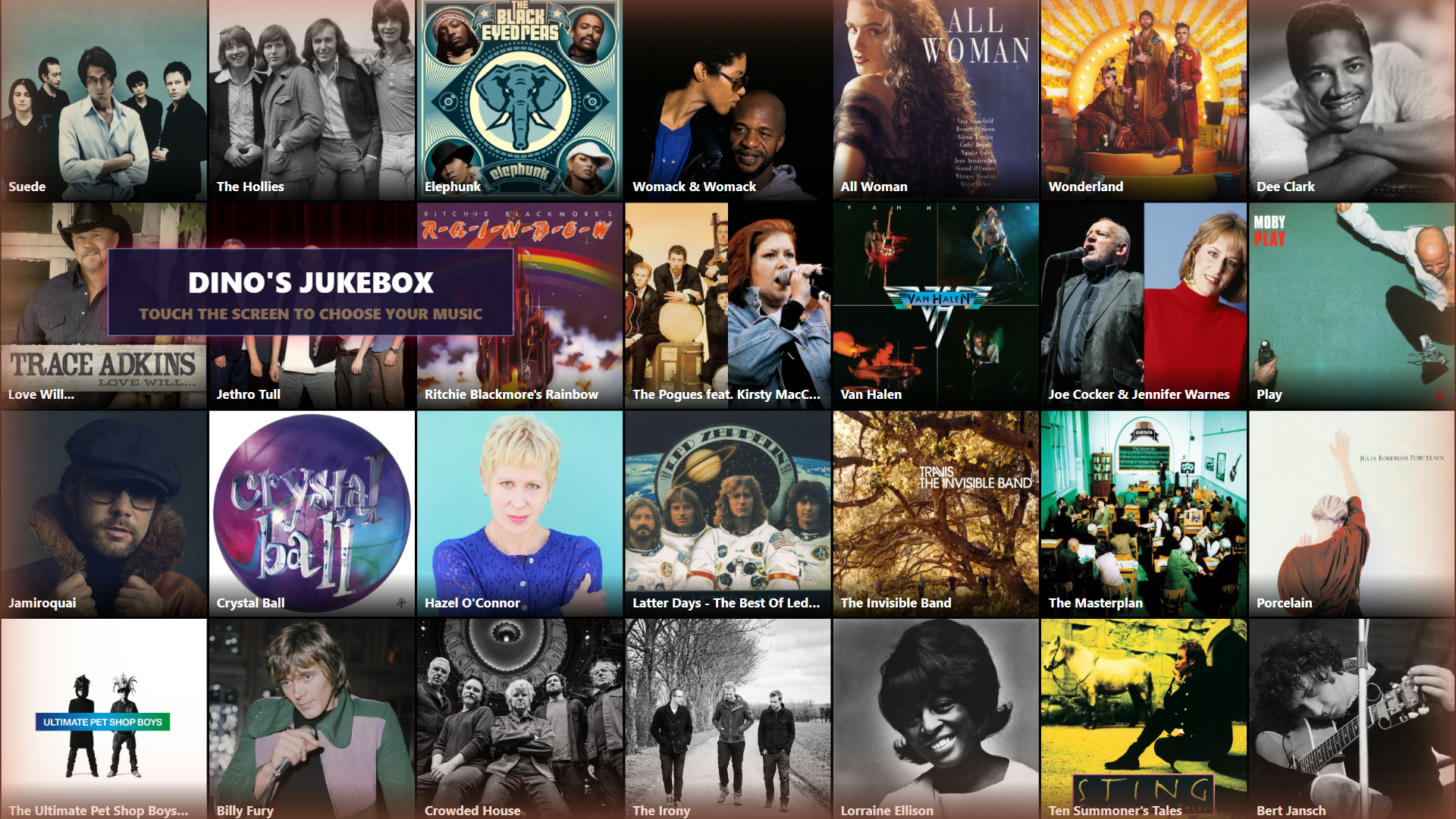
    Dino’s Jukebox is touchscreen jukebox software for Windows. It turns a PC and a touchscreen into a proper jukebox, not just another media player. The idea is simple. First, build the home jukebox I’d want myself. Then make it good enough that a pub could run it too. Best of all, one switch changes how it behaves, so it suits a games room, a garden bar or a busy pub equally well. It’s nearly finished, with a planned price of £29.99, so here’s what it does.

    For the features, specifications and (soon) the download in one place, see the Dino’s Jukebox jukebox software page.

    Touchscreen jukebox software attract screen showing a wall of album art with a Dino's Jukebox banner
    When nobody’s using it, a moving wall of album art invites people over.

    Touchscreen jukebox software for home or the pub – you decide

    At home

    • Free Vend – everything is free and the prices disappear
    • Add Album to Queue on album pages for whole-album listening
    • iPhone remote (iPad version coming soon) – queue songs from the sofa; phone requests are always free
    • Built-in radio station – listen in other rooms or on smart speakers, including an Amazon Echo
    • Background music that fades out the moment someone picks a song
    • Seasonal looks – spring, summer, autumn, winter, Christmas and New Year

    In the pub

    • Coin credits – works with a coin mechanism, with your own prices
    • Priority Play – customers can pay a little more to jump the queue
    • Hot Here chart built from what customers actually play
    • Top 50 countdown (adjustable length) introduced by a DJ voice
    • Hidden operator menu for staff – test credits, skip, clear queue and more
    • Volume levelling so every record plays at the same loudness

    Name, prices, music location, DJ voice and stream quality all live in one plain settings file. As a result, it’s easy to set up for either job. What’s more, updating the software never touches your settings or the chart.

    Made for fingers, not mice

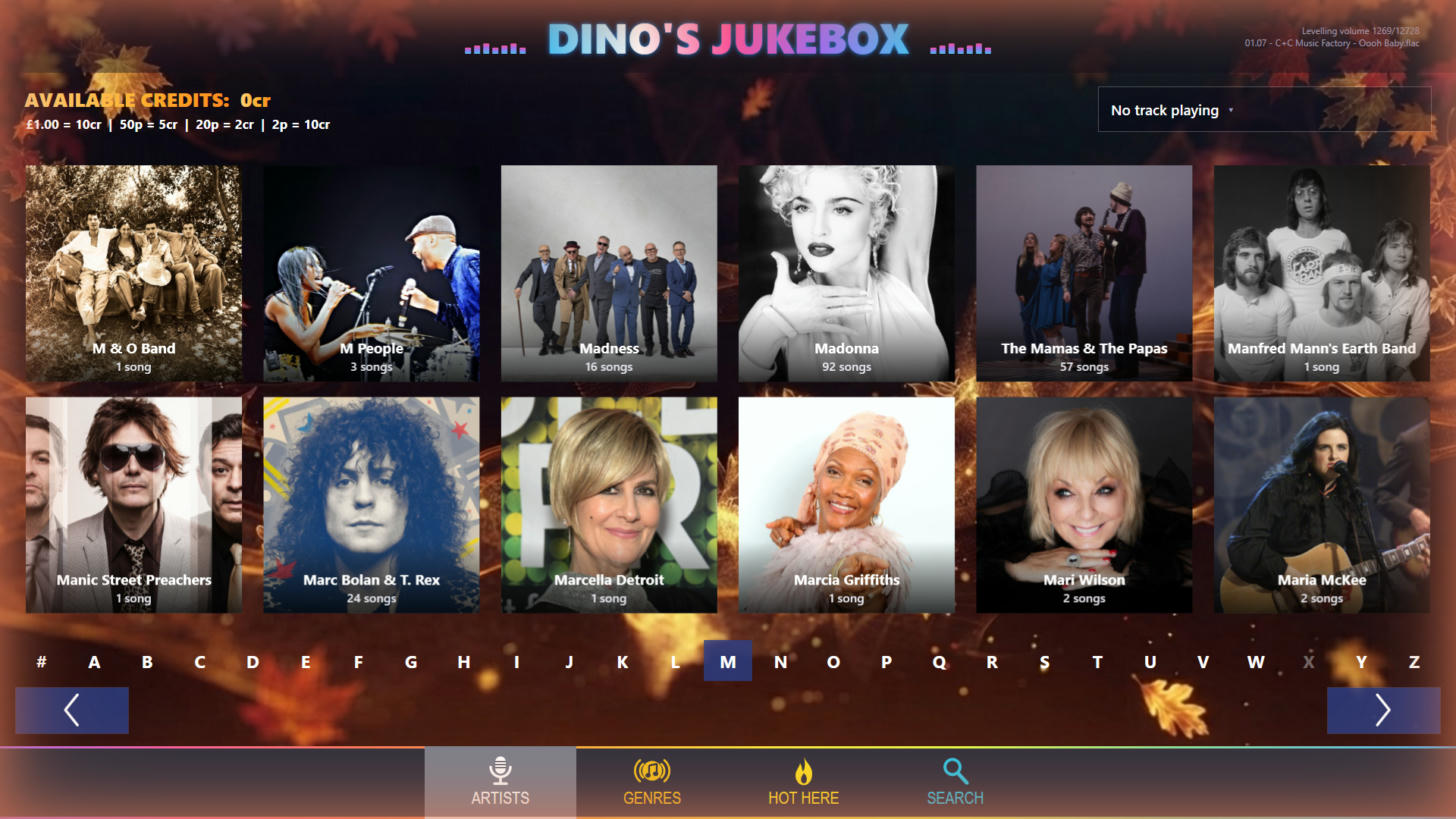
    Point it at your music collection, on the PC or a NAS, and it does the rest. First, it reads the tags and embedded artwork, groups everything by artist, album, genre and decade, and keeps itself up to date. In addition, there are five ways to browse: Artists, Albums, Genres, Hot Here and Search. You also get big photo tiles, an A–Z strip that skips empty letters and ignores “The”, and smooth sliding pages. So far, my reference jukebox has been running daily with over 12,000 tracks.

    Artists screen with large photo tiles for each artist and an A to Z jump strip
    Artists: big photo tiles and an A–Z jump strip.
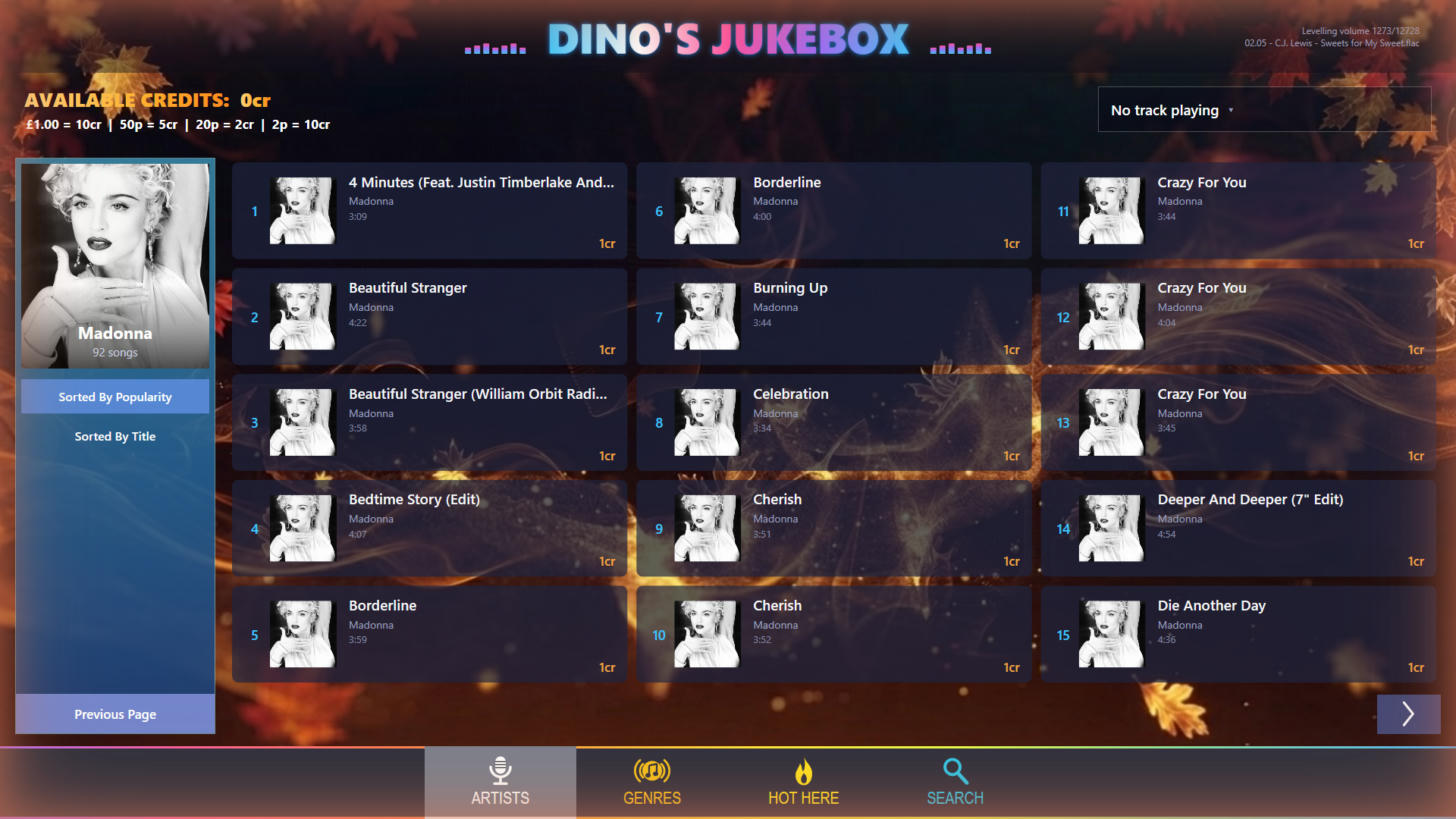
    An artist's page listing their songs with artwork and prices
    An artist’s page, sorted by popularity or title.
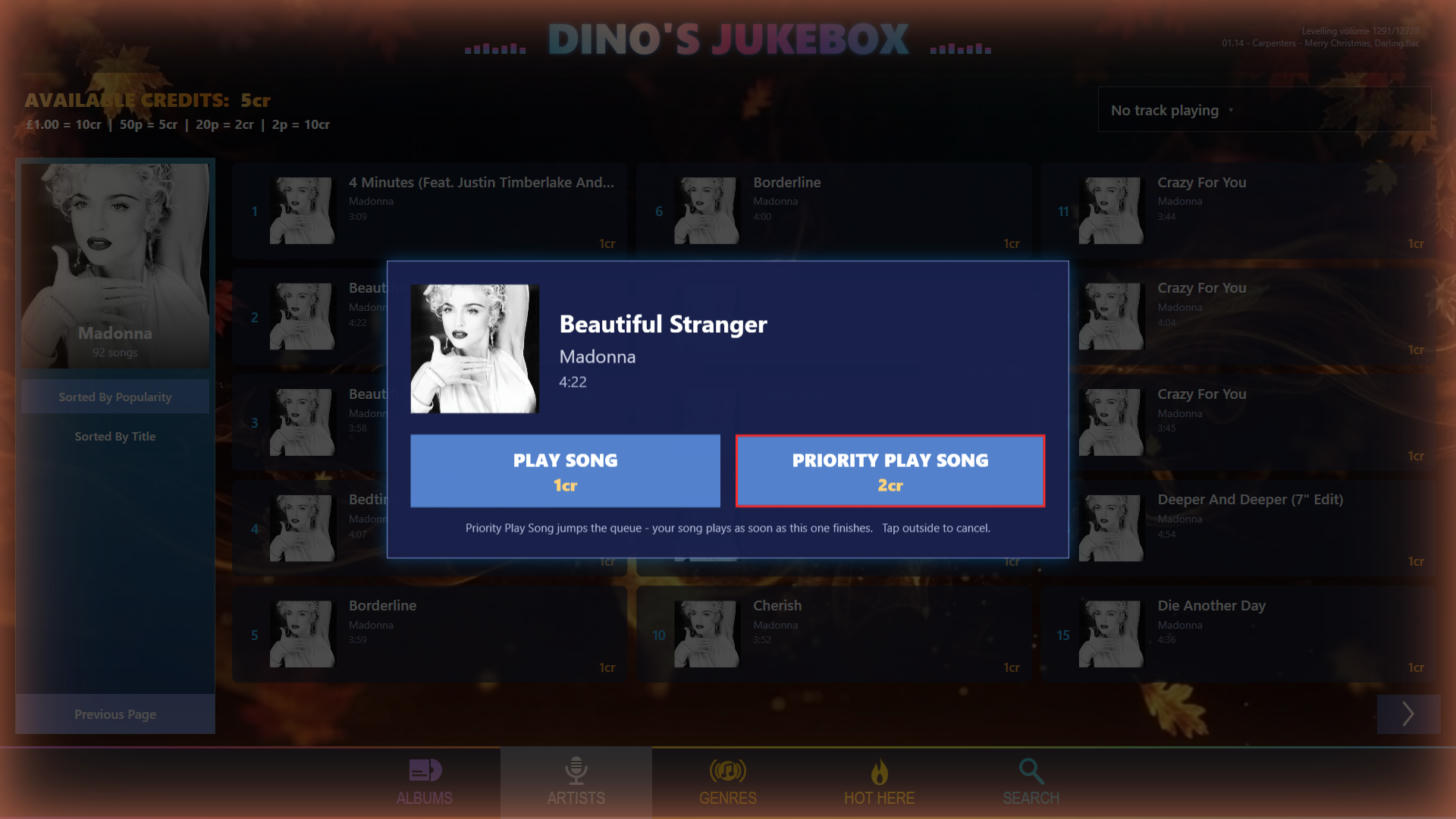
    Pop-up asking whether to Play Song for 1 credit or Priority Play Song for 2 credits
    A clear Play or Priority Play choice before any credit is spent.
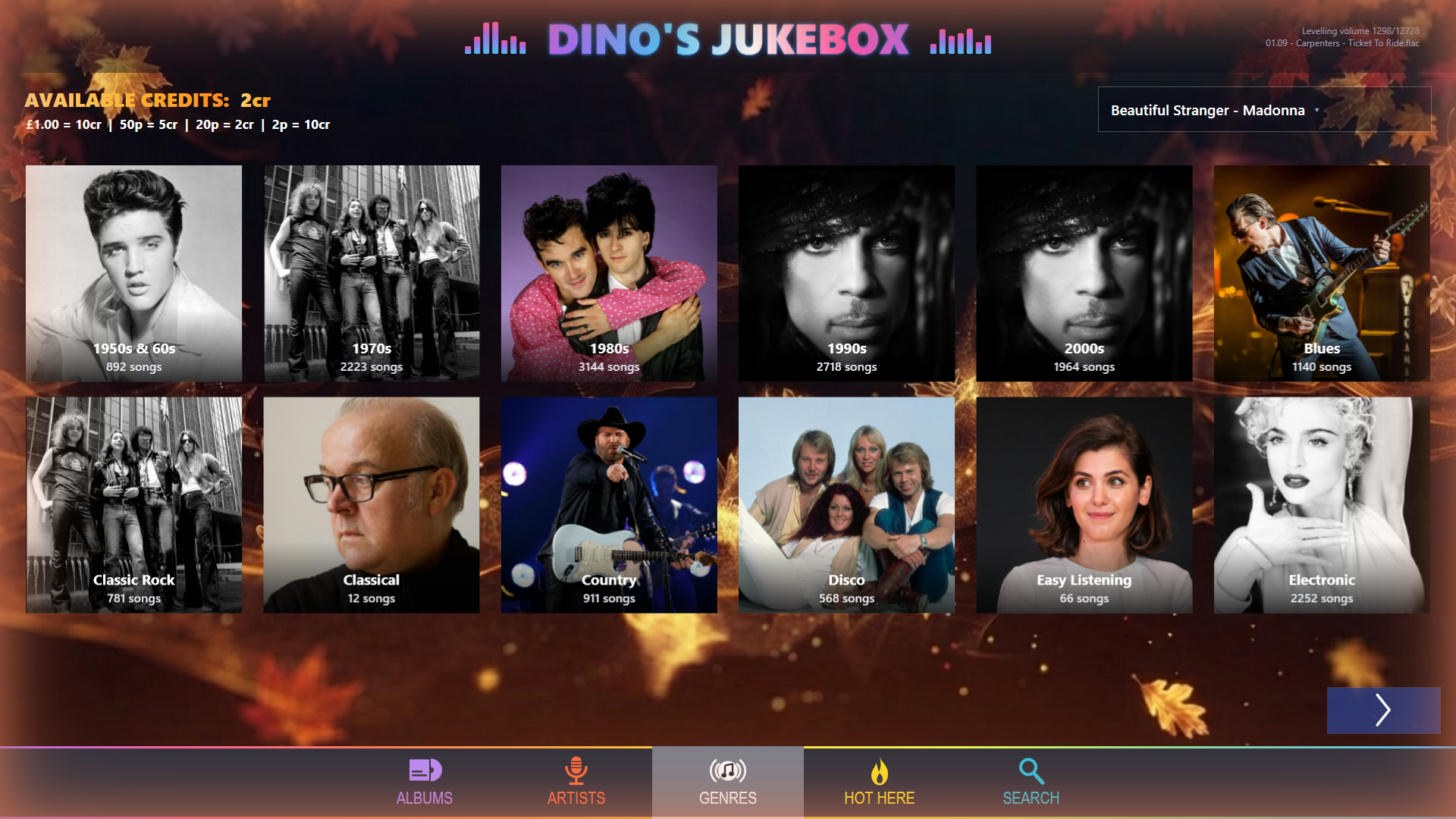
    Genres screen with tiles for decades and music styles
    Genres, plus decades worked out automatically from each track’s year.
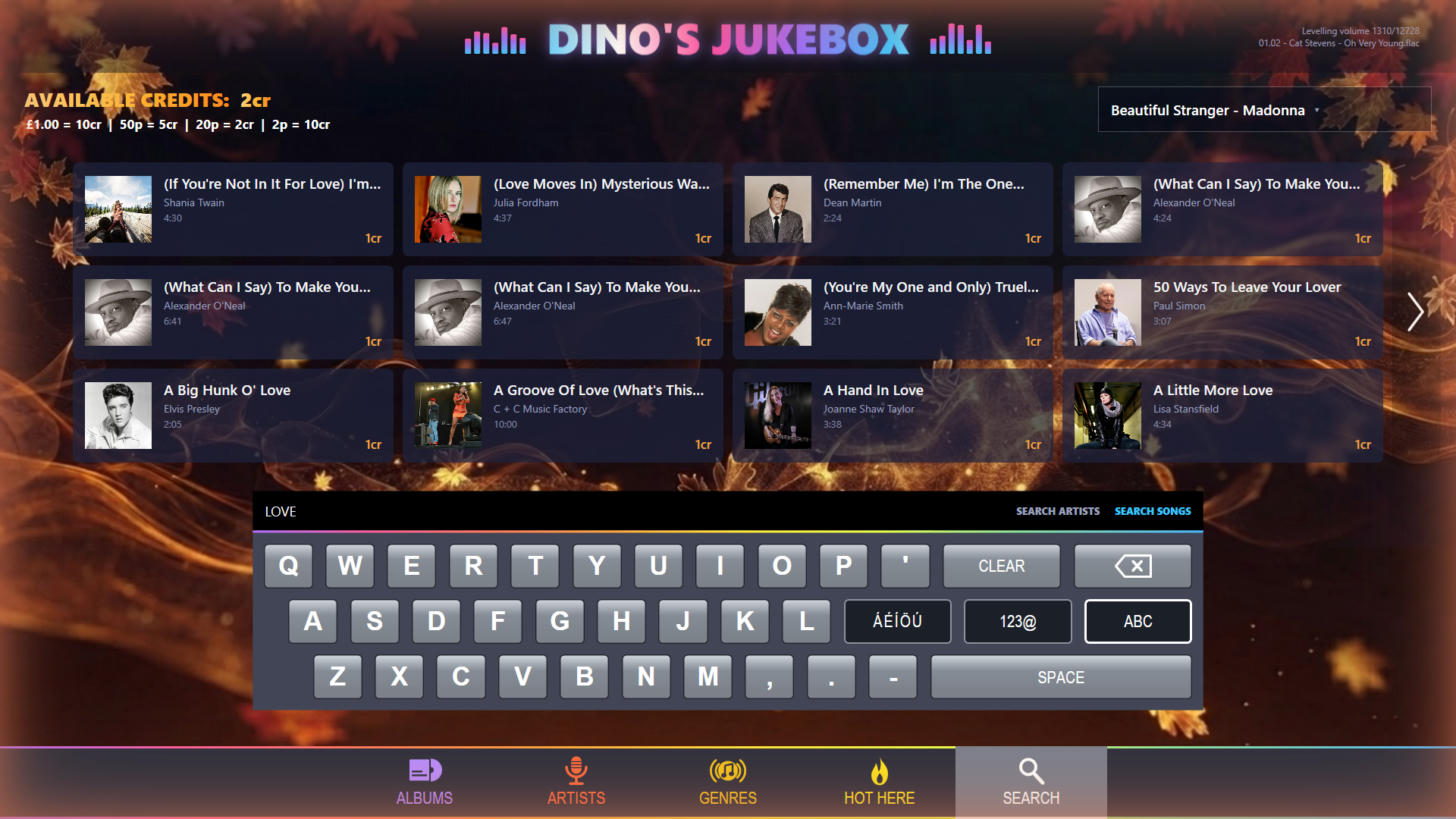
    Search screen with an on-screen keyboard and live results for the word love
    Search artists or songs, with results appearing as you type.

    Its own chart, and a DJ to count it down

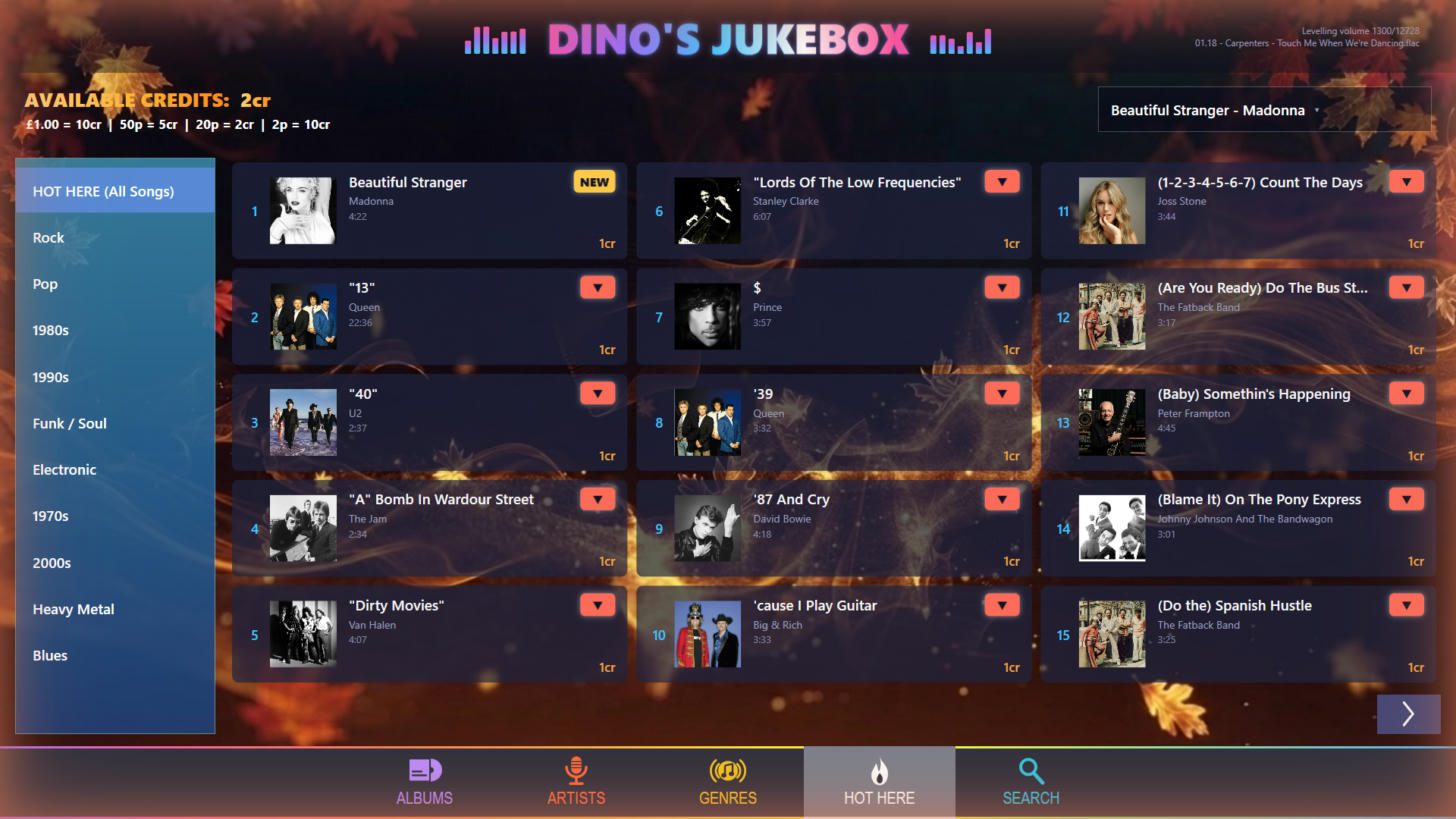
    Hot Here chart listing the most-played songs with up, down and new badges
    Hot Here: the 50 most-played songs on this jukebox, with up, down and NEW badges after every play, and genre filters.

    Hot Here is a live Top 50 built from real plays. It survives restarts, and you can filter it by the ten biggest genres or decades. Its up, down and NEW badges also update after every play, so people can watch their picks climbing. However, background music, countdown plays, album picks and skipped songs never count. That way, the jukebox can’t inflate its own chart.

    One tap plays the chart countdown, from the full Top 50 or a shorter list you choose, all the way down to #1. Then a natural-sounding DJ introduces each record (“At number 20 this week, it’s…”), dipping the music while it speaks, just like radio. The voice runs entirely on the PC, with no cloud service. You can choose a British female or American male voice, and both are licensed for commercial use. Meanwhile, people’s own picks still play first. Also, the DJ is never cut off mid-sentence.

    Easy to run

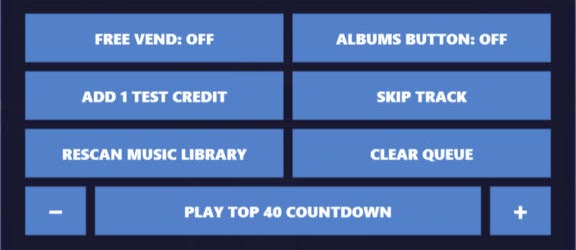
    • A secret three-corner tap plus a 6-digit PIN opens the operator menu. It shows the jukebox’s health on one screen: music folder, pricing, DJ voice, levelling progress, phone pairing PIN and the radio address
    • It also picks up new music automatically at start-up
    • Downloads its DJ voice once, then runs offline
    • Every track is measured to the broadcast LUFS standard, but your files are never changed
    • Finally, it writes a clear crash log if anything goes wrong
    Operator menu with buttons for Free Vend, test credit, skip track, rescan, clear queue and chart countdown
    The hidden operator menu.

    Specifications

    PlatformWindows 10 (1809 or later) or Windows 11, 64-bit, with the free .NET 8 runtimes
    DisplayFull-screen widescreen (16:9) touchscreen
    MusicMP3, FLAC, M4A, WAV, WMA and OGG from a local drive or NAS, with tags and embedded artwork
    PaymentCoin mechanism (one pulse per credit) with configurable song and priority prices, or Free Vend
    Remote controliPhone app over home Wi-Fi with automatic discovery and PIN pairing; iPad version coming soon
    StreamingBuilt-in MP3 internet radio (128–320 kbps) with now-playing titles and optional access key; can play on an Amazon Echo
    VoiceOffline Piper neural text-to-speech: British female or American male voice (commercially licensed), with a Windows voice as backup
    AudioEBU R128 / LUFS loudness levelling with adjustable target; honours ReplayGain tags
    Built withWPF / .NET 8, NAudio, TagLib#, SQLite

    An iPad version of the remote is coming soon, and a dedicated iPhone music player based on the same software is on the way. Bring the jukebox home, or back to the bar. I’ll post more as I finish it off, and the download will appear on the jukebox software page.